BSS AI SEO Assistant
Created on: Mar 04, 2026
PRE-REQUISITES
-
The plugin requires you to install the BSS Core plugin first.
INSTALLATION
- Go to the Order Details Page and Download plugin package
- Go to Administration → Configuration → Local plugins
- Within the bundle, you get all the required files, including BSS.Core
- Upload the zip files using the 'Upload plugin or theme' button
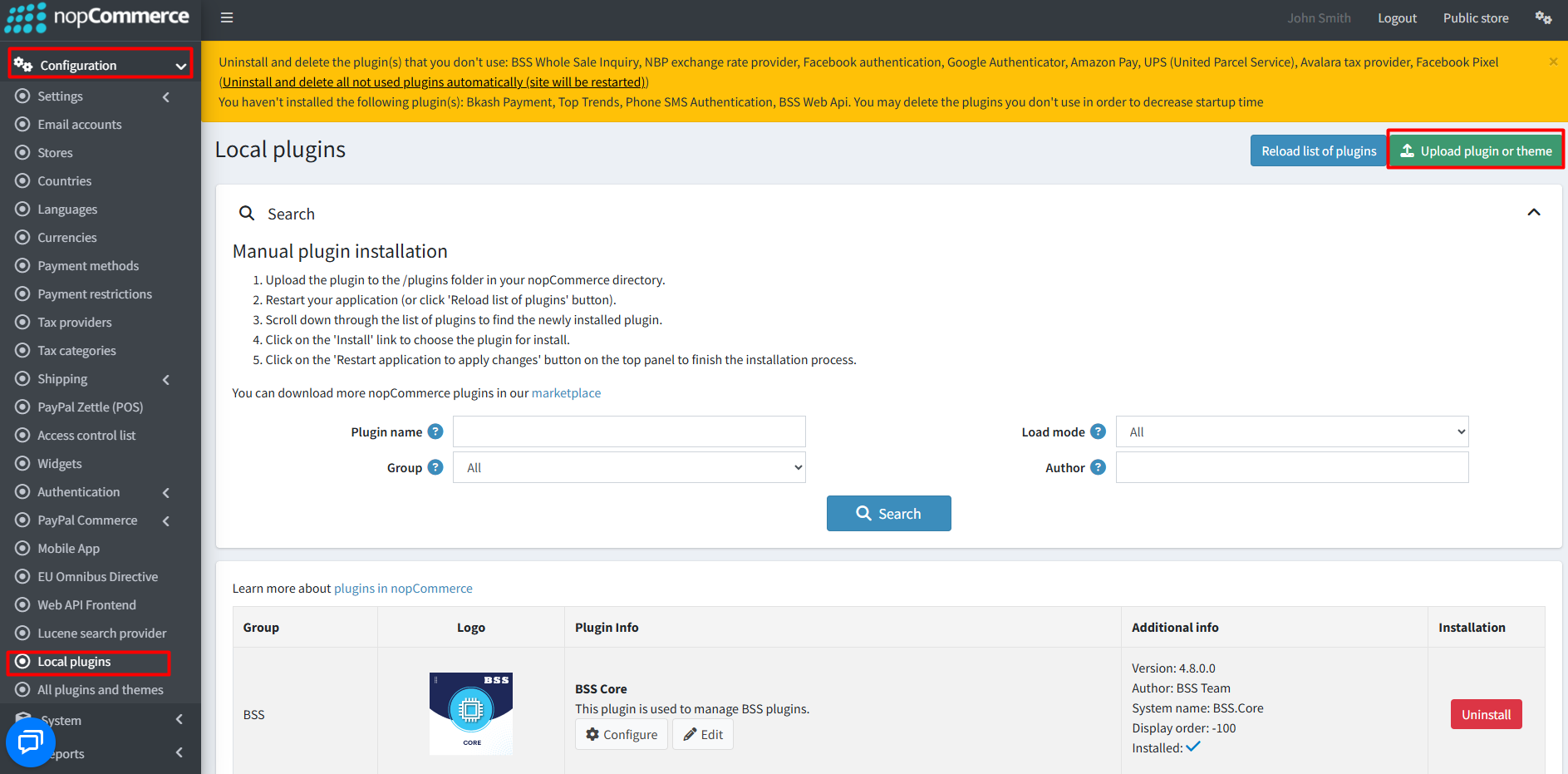
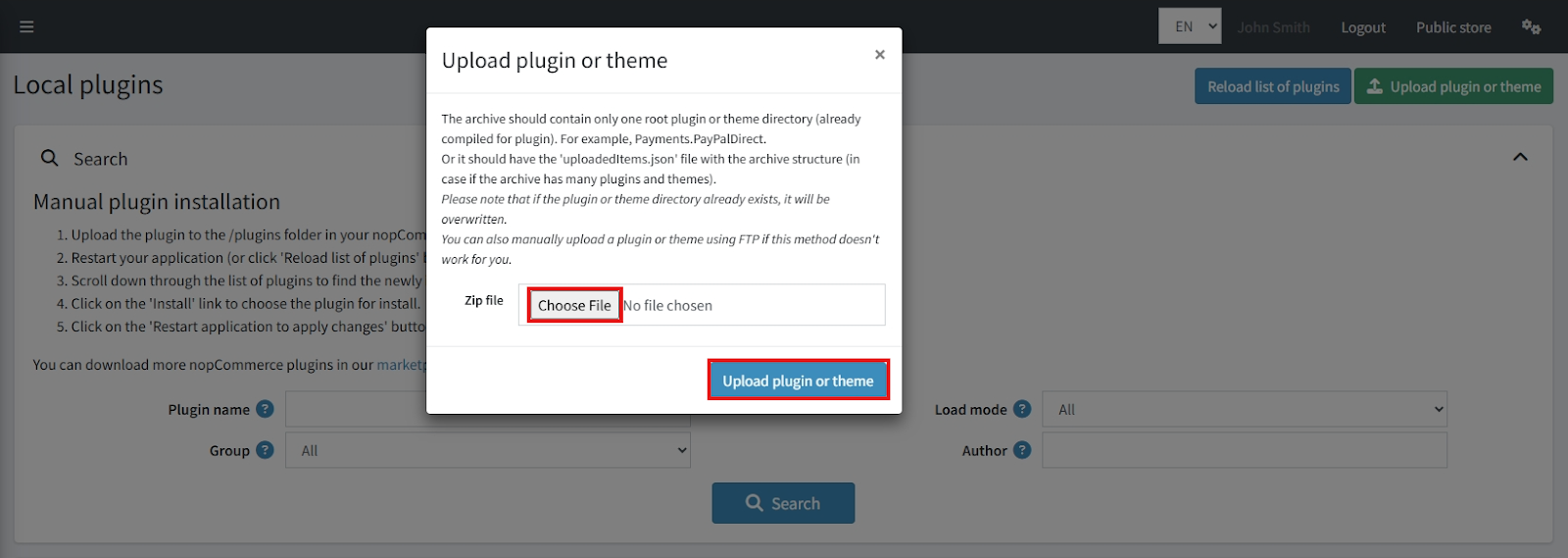
- After uploading, install the ‘BSS Core’ Plugin and ‘BSS AI SEO Assistant’.
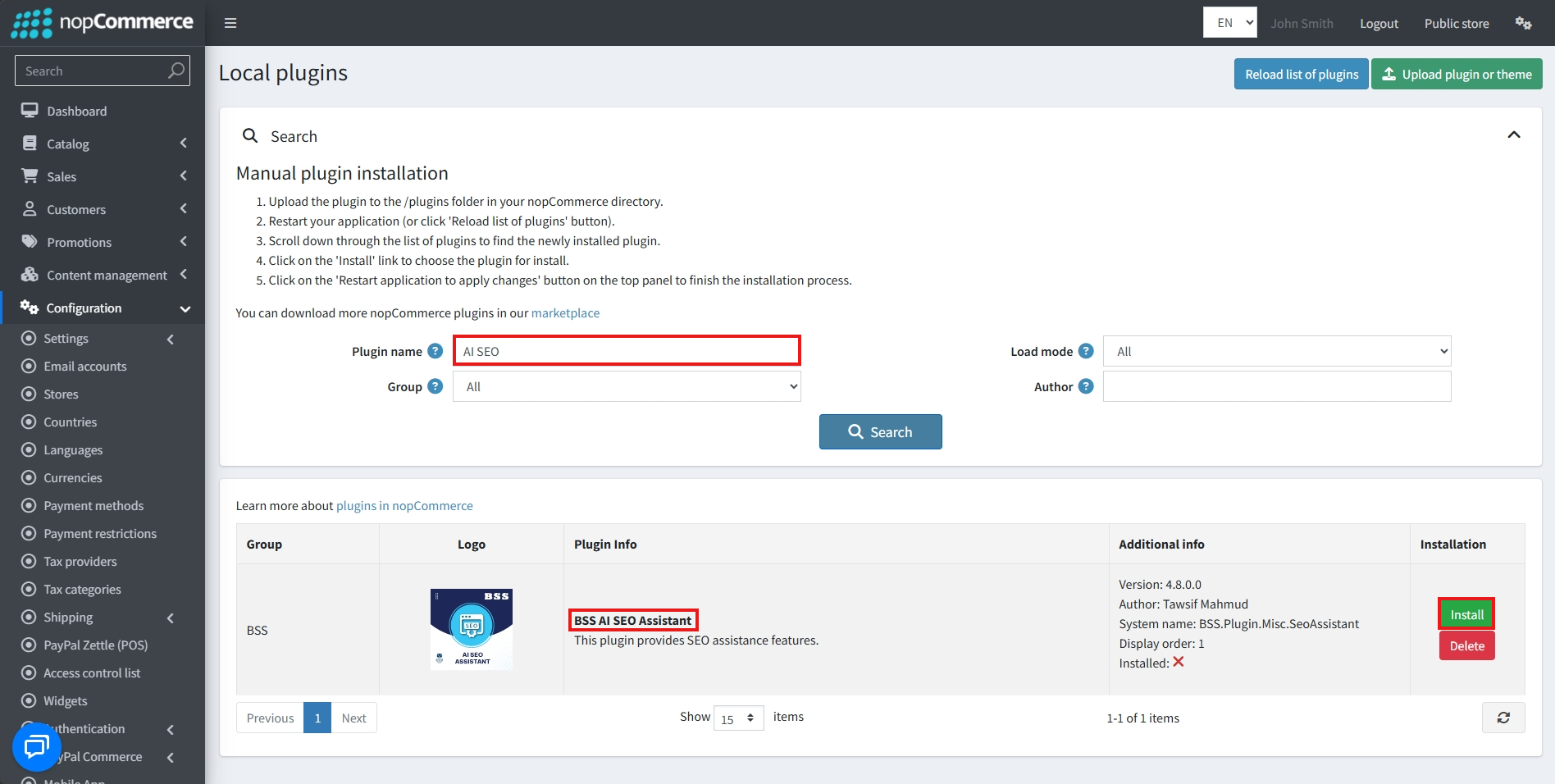
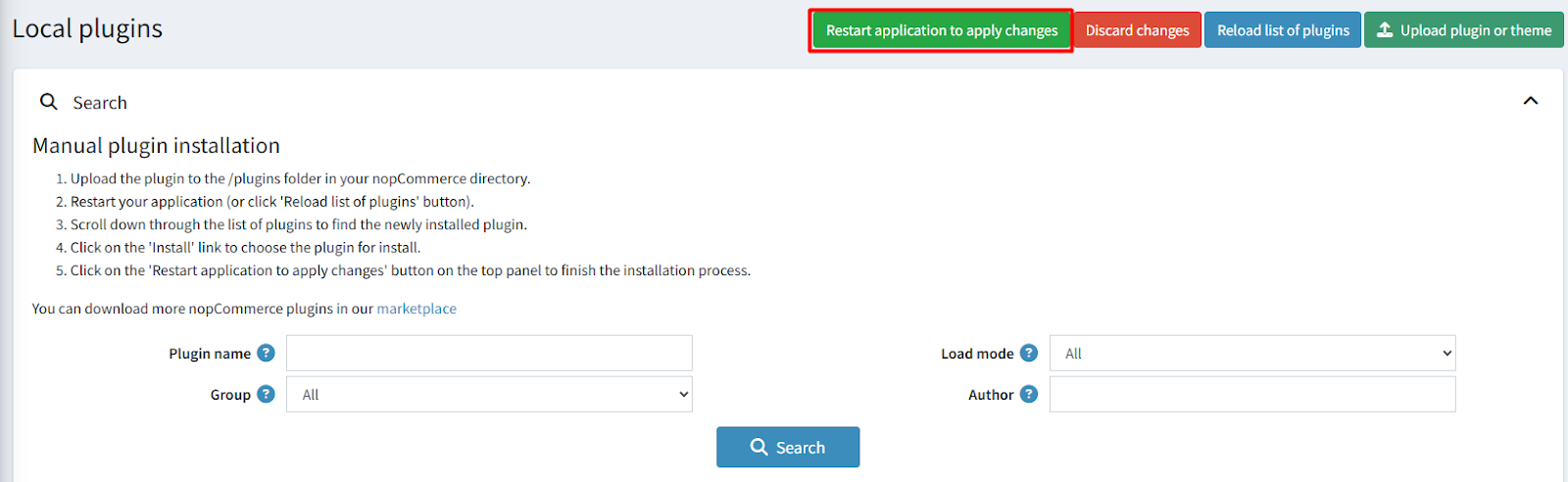
- To make the plugins functional, restart the application.
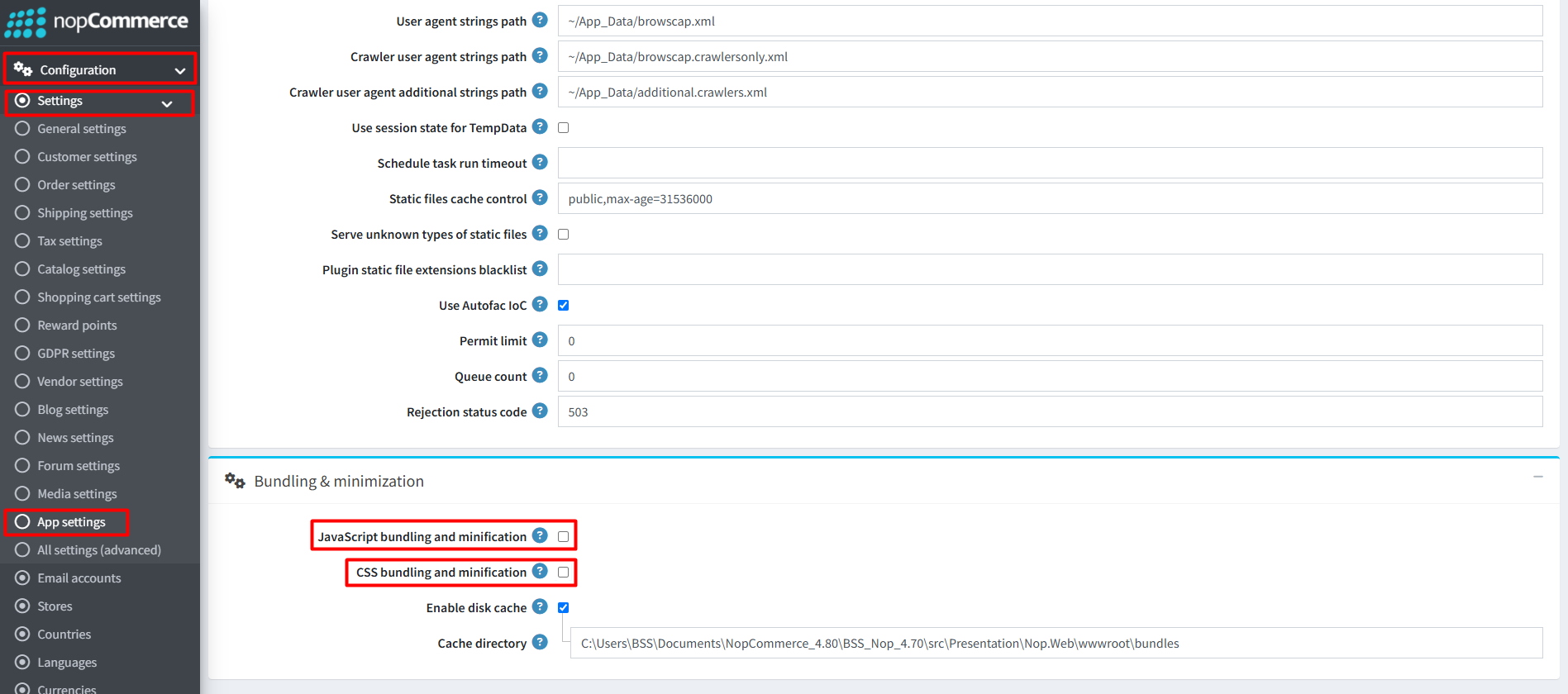
Recommendation: Go to > App Settings. If you find JavaScript bundling and minification, CSS bundling and minification are checked, then uncheck these two options and disable them.
CONFIGURE
-
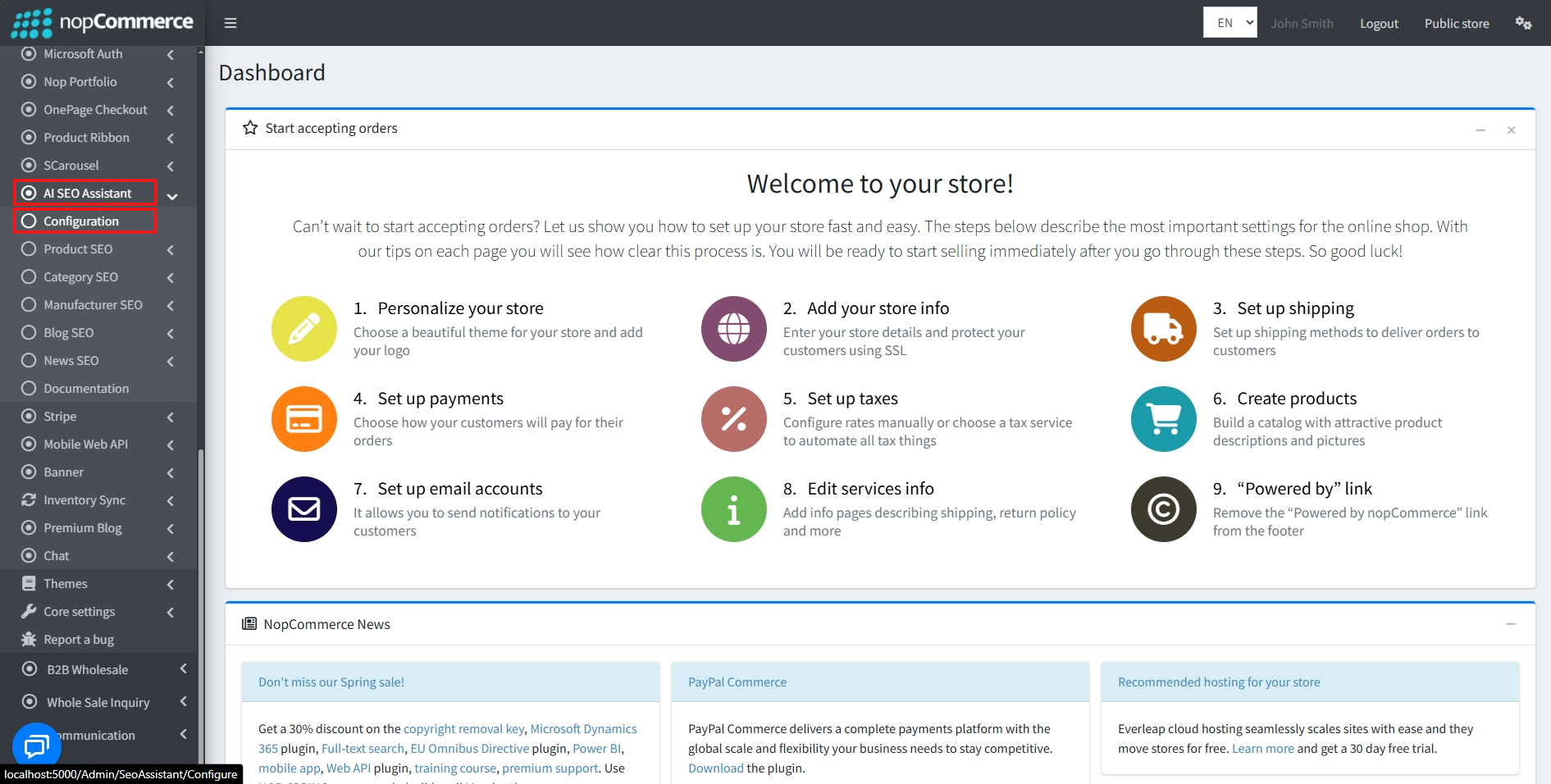
Go to Admin → BSS → Plugins → AI SEO Assistant → Configuration
-
Enter the License string and save it. Then clear cache

-
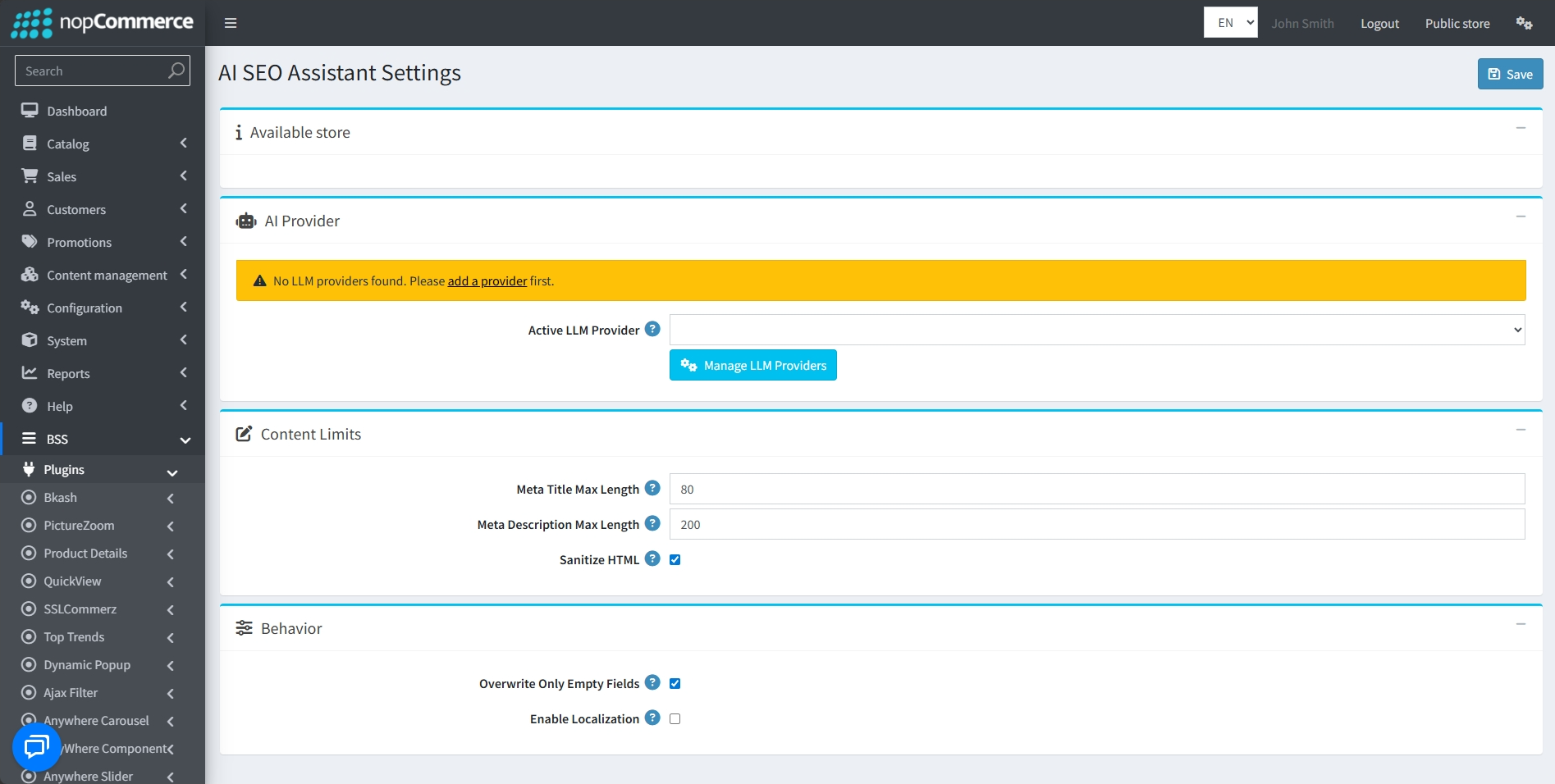
Then again go to BSS → Plugins → AI SEO Assistant → Configuration to set the configuration.
AI PROVIDER
-
Active LLM Provider: Choose your preferred AI service from the dropdown menu.
-
To add a new LLM provider, click on the Manage LLM Provider button or navigate to BSS → Plugins → AI SEO Assistant → LLM Providers
CONTENT LIMITS
-
Meta Title Max Length: Define the maximum character count for generated Meta Titles to ensure they are optimized for search engines.
-
Meta Description Max Length: Set the character limit for Meta Descriptions.
-
Sanitize HTML: Checking this box ensures the AI-generated content is cleaned of any potentially problematic HTML tags before being saved.
BEHAVIOR
-
Overwrite Only Empty Fields: When enabled, the AI will only generate content for fields that are currently blank, preventing it from replacing your existing SEO data.
-
Enable Localization: Check this box if you want the assistant to generate SEO metadata for different language versions of your products and categories.
- After setting all conditions, click the Save button.
LLM PROVIDERS
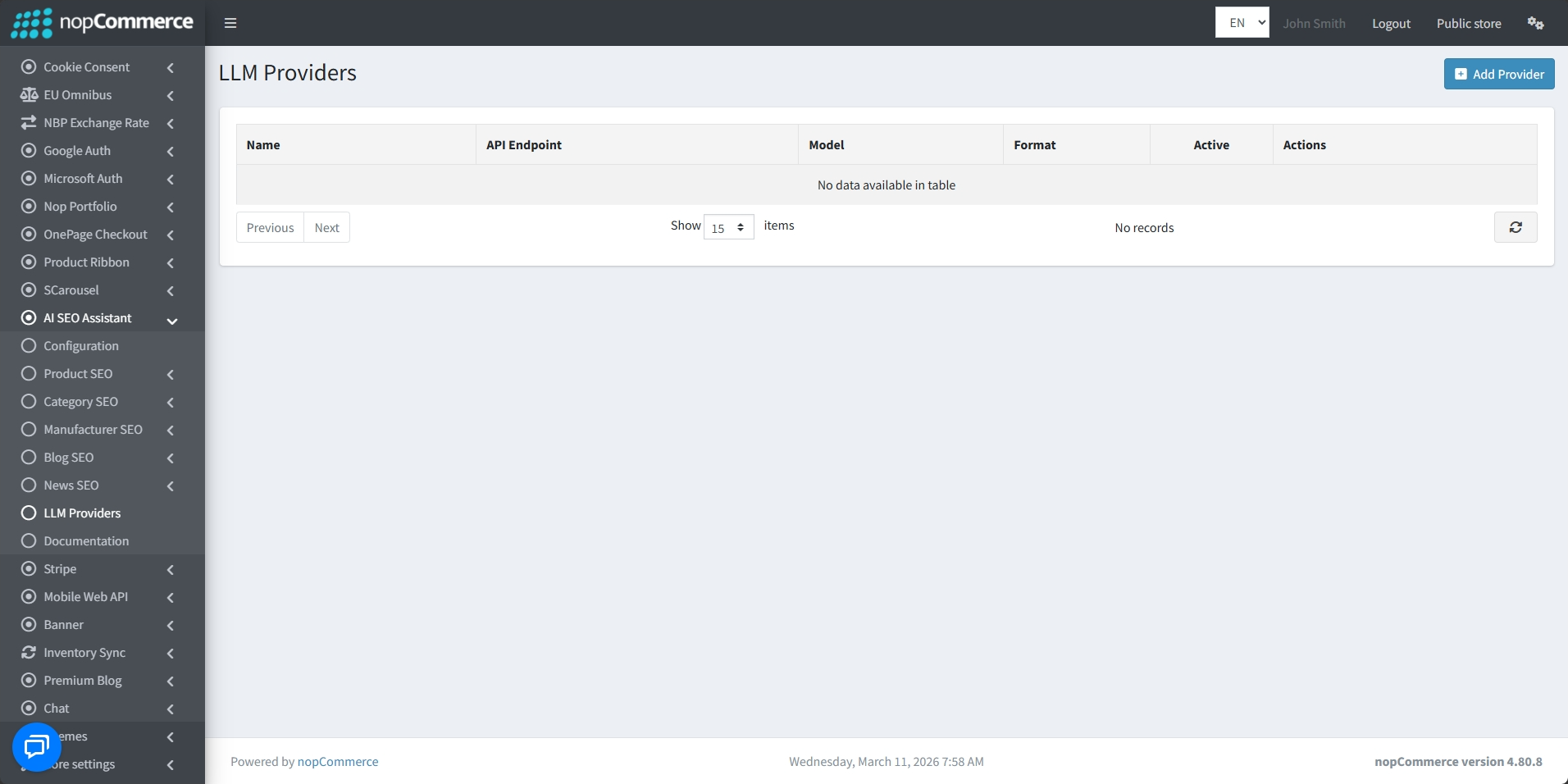
- Go to Admin → BSS → Plugins → AI SEO Assistant → LLM Providers to view and manage LLM Providers.
-
View the Name, API Endpoint, Model, and Format for every entry
-
Quickly identify which provider is currently Active
-
Use the Add Provider button at the top right to create additional configurations
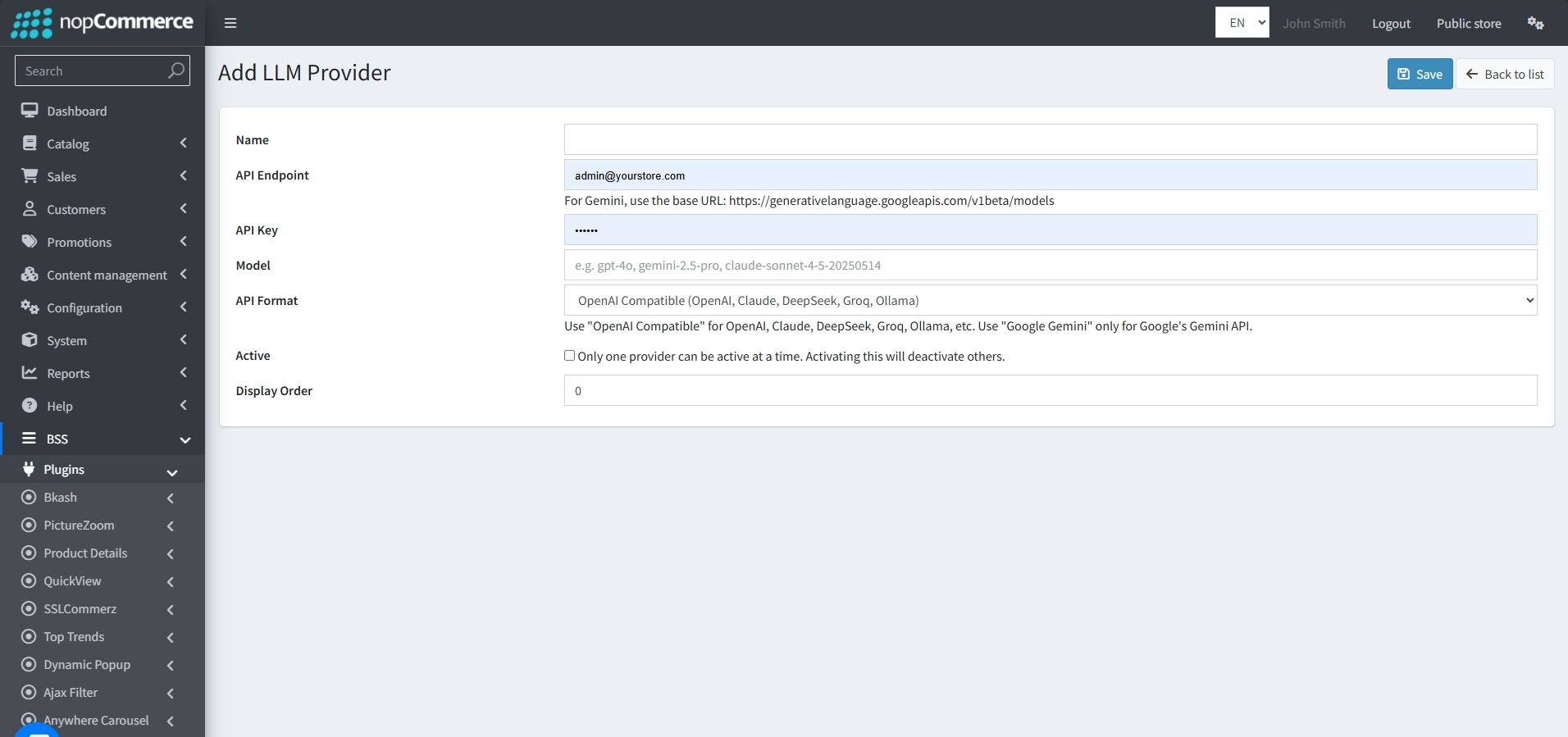
-
Enter a recognizable Name for the provider.
-
Provide the API Endpoint (base URL) for the service.
-
Enter the API Key provided by your AI service
-
Specify the exact AI Model you wish to use
-
Select the API Format from the dropdown menu
-
Check the Active box to enable the provider. Note: Only one provider can be active at a time
-
Set the Display Order to determine where the provider appears in your lists
PRODUCT SEO
SINGLE PRODUCT SEO
-
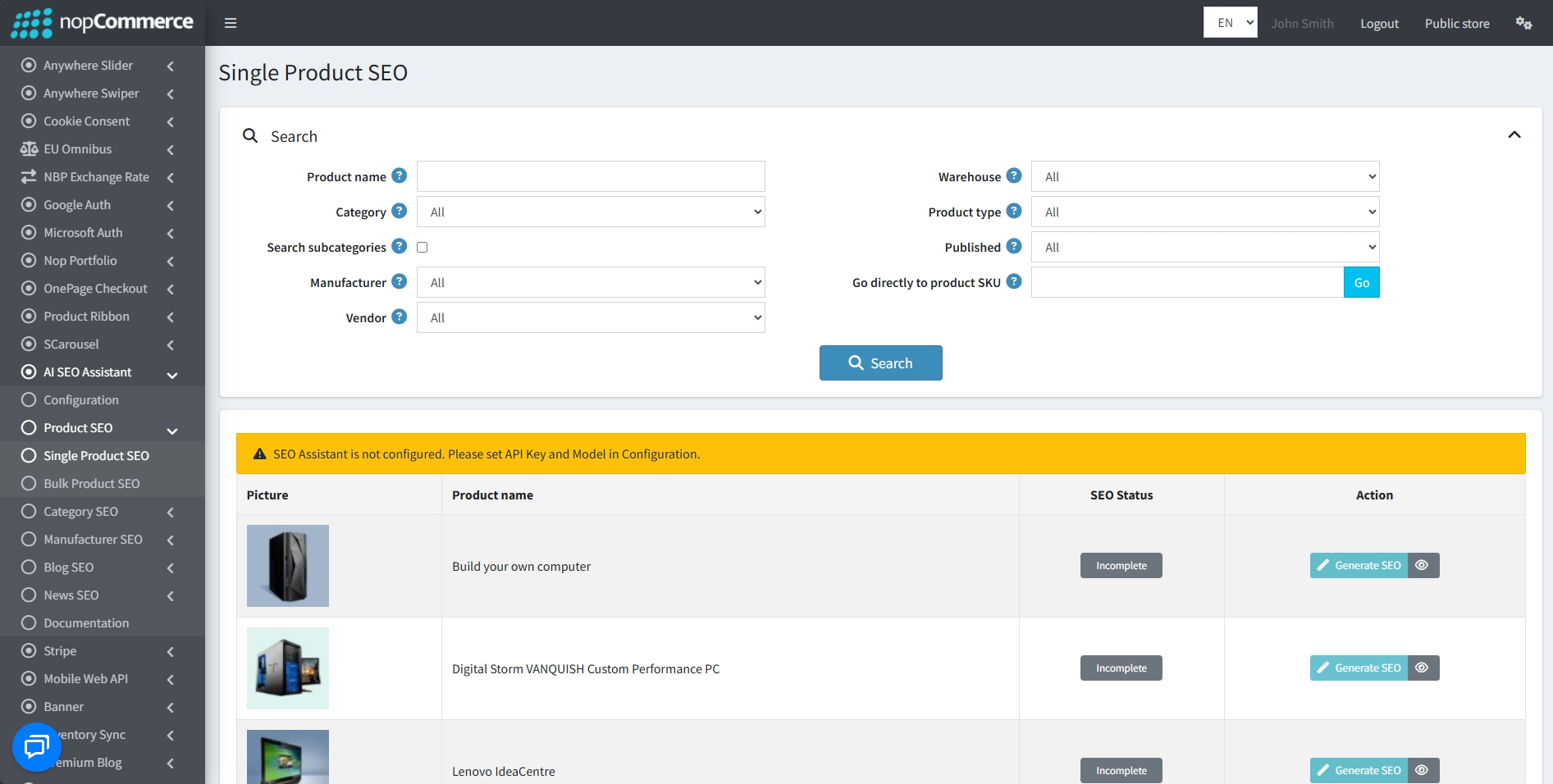
Go to BSS → Plugins → AI SEO Assistant → Product SEO → Single Product SEO to set the configuration.
-
Targeted Optimization: Manage and generate metadata for individual products one by one.
-
Comprehensive Search: Filter your catalog using the Search panel by Product name, Category, Manufacturer, etc.
-
Real-Time Status: View the current SEO Status directly in the product table.
-
On-Demand Generation: Use the Generate SEO button in the Action column to trigger the AI assistant for a single item.
-
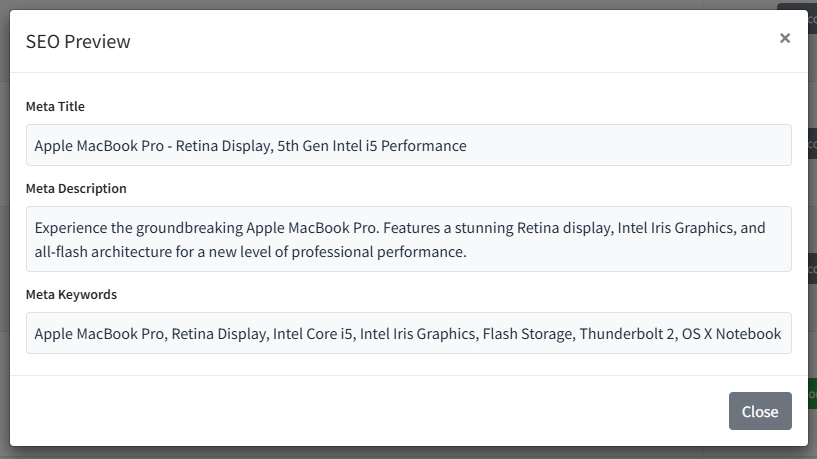
Metadata Preview: Click the eye icon in the Action column to review the generated SEO content.
BULK PRODUCT SEO
-
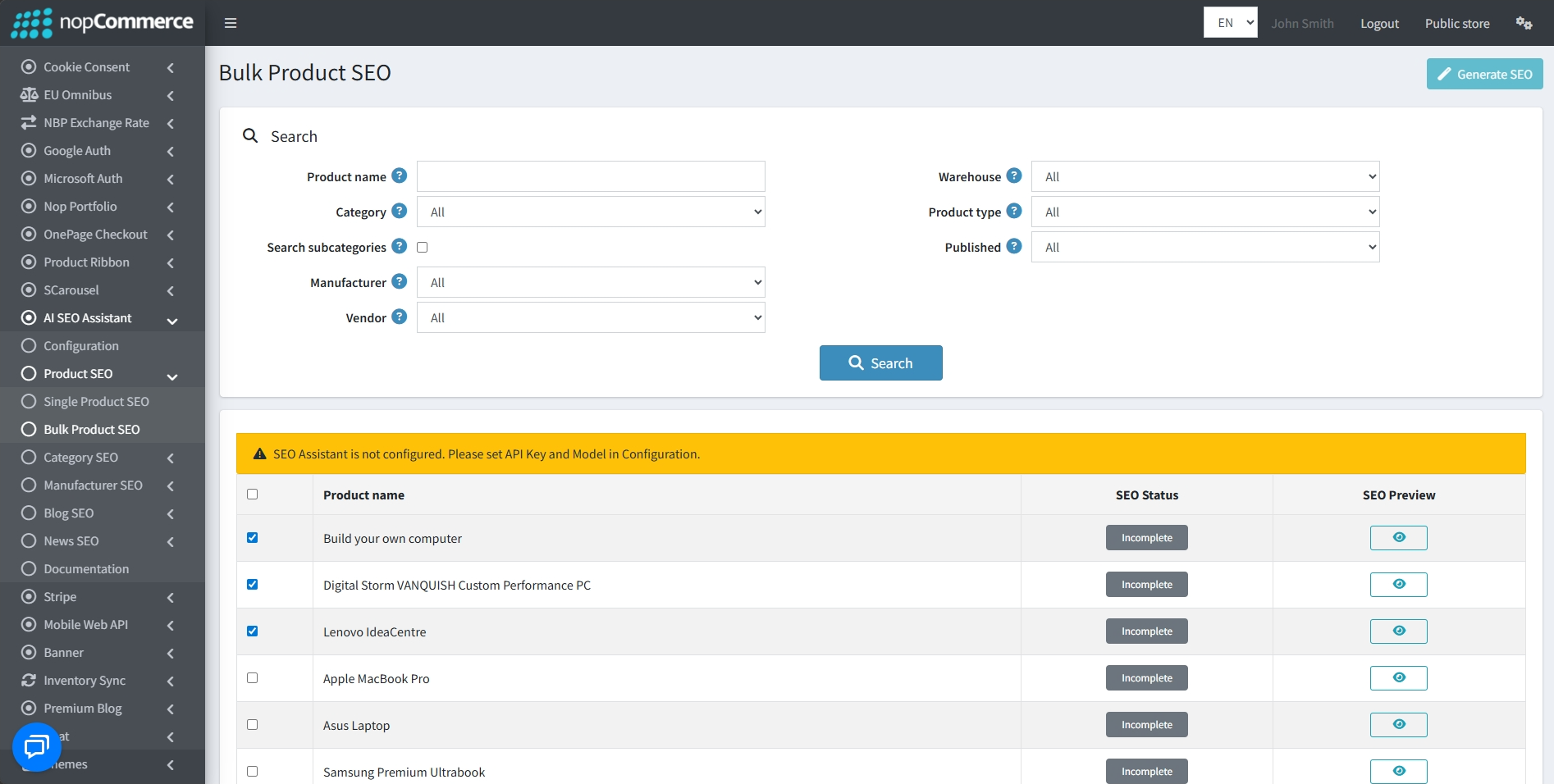
Go to BSS → Plugins → AI SEO Assistant → Product SEO → Bulk Product SEO to set the configuration.
-
Mass Processing: Optimize large groups of products at once to efficiently manage extensive catalogs.
-
Advanced Filtering: Use the Search bar to narrow down the product list by Vendor, Warehouse, Product type, etc.
-
Batch Selection: Select multiple products using the checkboxes in the result table for simultaneous processing.
-
Global Execution: Click the Generate SEO button at the top right of the screen to start the AI generation for all selected items.
-
SEO Preview: Use the preview icon in the SEO Preview column to review the AI-generated metadata for each product before finalizing.
CATEGORY SEO
SINGLE CATEGORY SEO
-
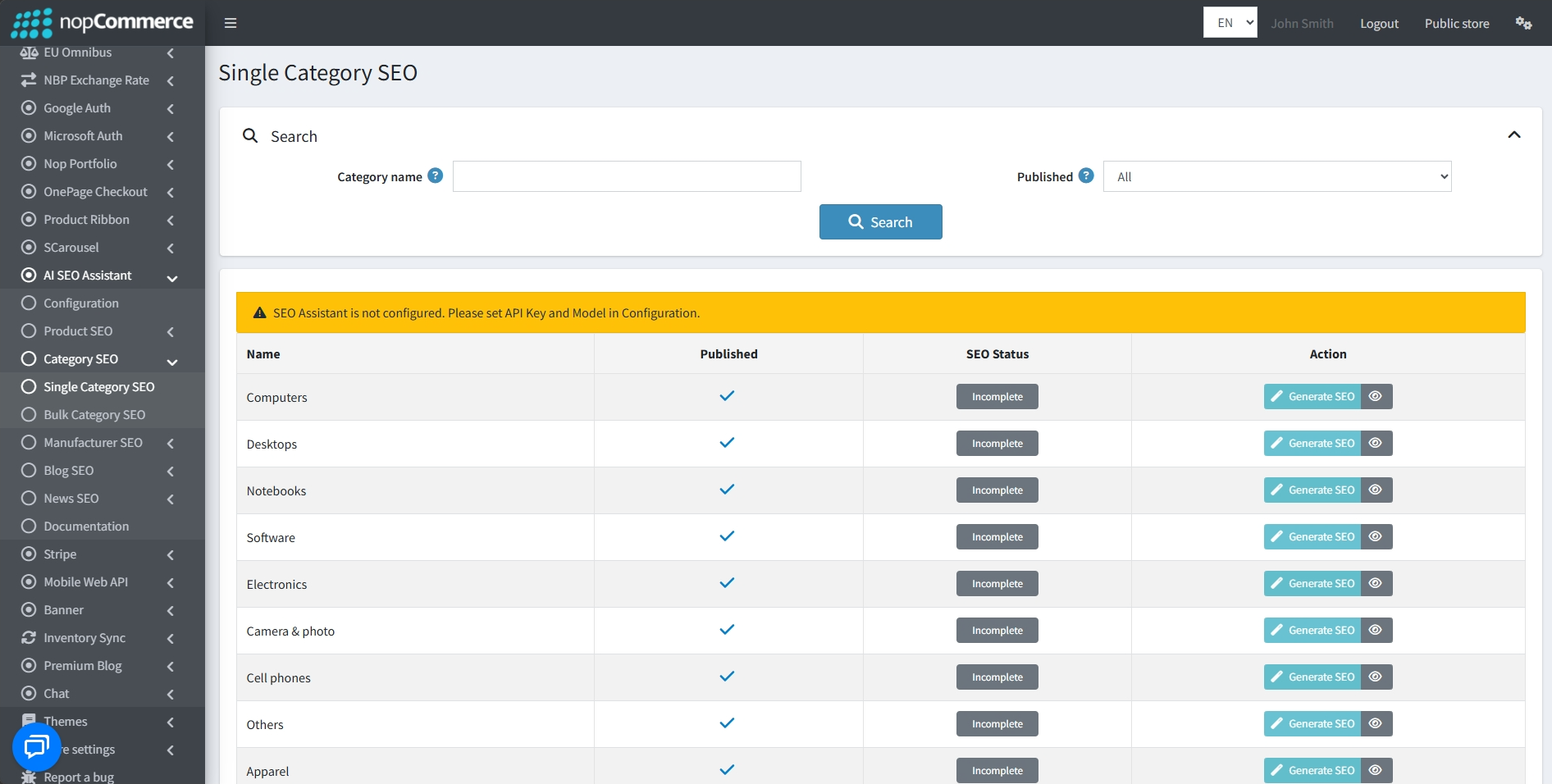
Go to BSS → Plugins → AI SEO Assistant → Category SEO → Single Category SEO to set the configuration.
-
Targeted Optimization: Manage and generate SEO metadata for individual categories one by one.
-
Category Search: Use the Search panel to filter your categories by Category name and Published status.
-
Real-Time Status: View the current SEO Status directly in the category list.
-
On-Demand Generation: Use the Generate SEO button in the Action column to trigger the AI assistant for a specific category.
-
Metadata Preview: Click the eye icon in the Action column to review the SEO content generated for that category.
BULK CATEGORY SEO
-
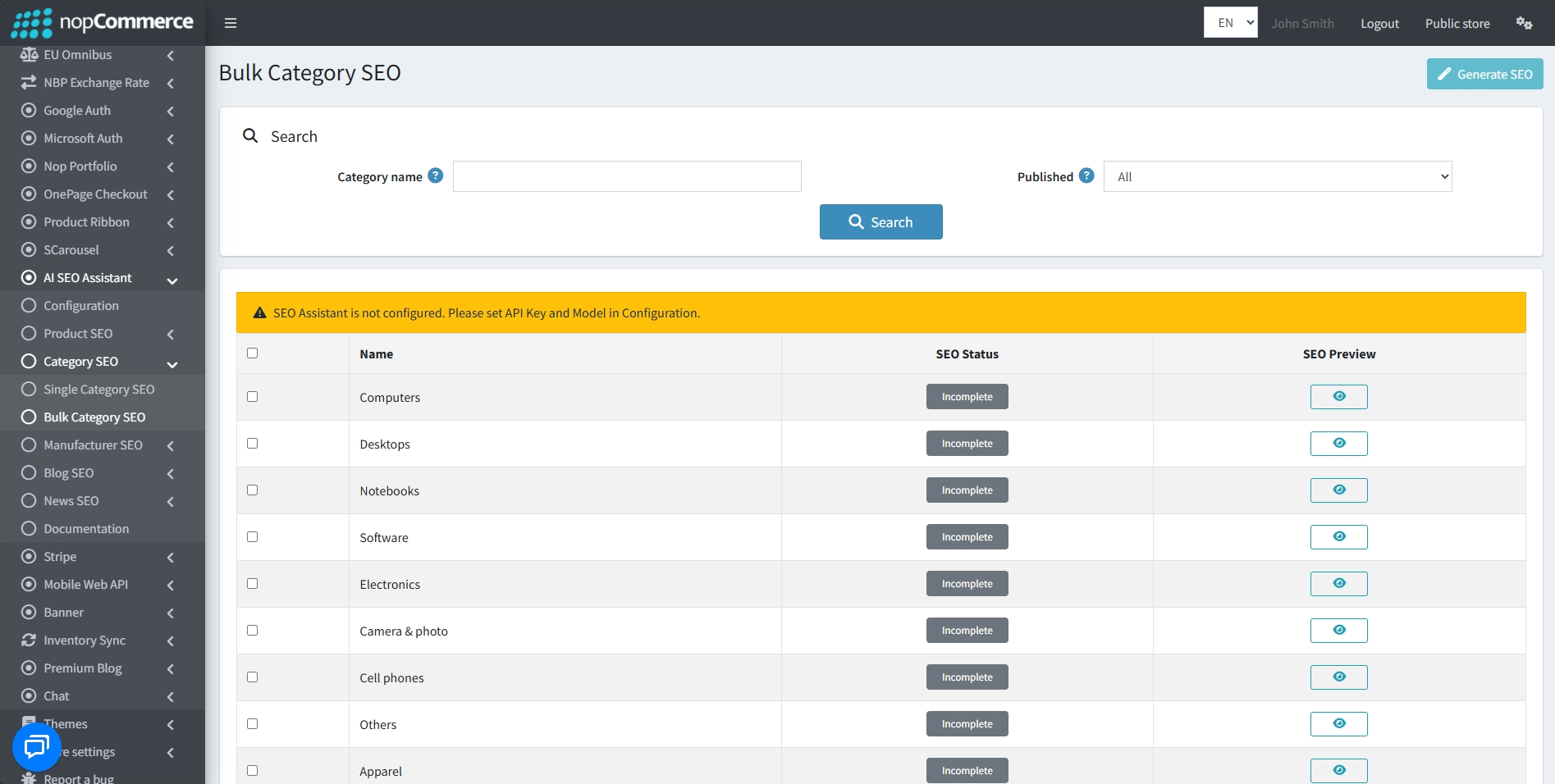
Go to BSS → Plugins → AI SEO Assistant → Category SEO → Bulk Category SEO to set the configuration.
-
Mass Processing: Efficiently optimize large groups of categories simultaneously.
-
Advanced Filtering: Utilize the Search bar to narrow down the category list by Category name and Published status.
-
Batch Selection: Select multiple categories at once using the checkboxes provided in the table.
-
Global Execution: Initiate the AI generation process for all selected categories by clicking the Generate SEO button at the top right of the screen.
-
SEO Preview: Use the preview icon in the SEO Preview column to review and verify the AI-generated metadata for each category before finalization.
MANUFACTURER SEO
SINGLE MANUFACTURER SEO
-
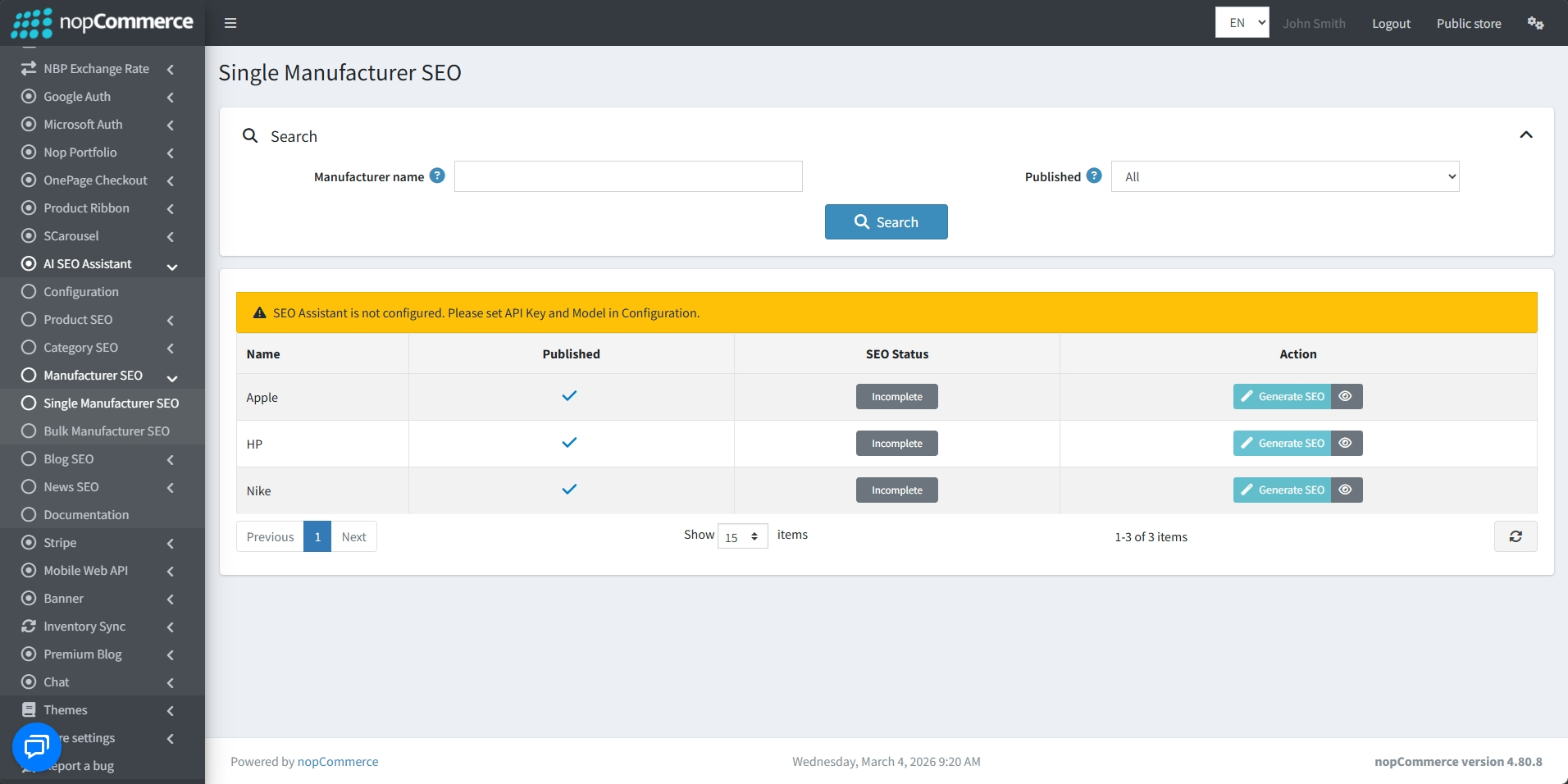
Go to BSS → Plugins → AI SEO Assistant → Manufacturer SEO → Single Manufacturer SEO to set the configuration.
-
Individual Optimization: Manage and generate metadata for manufacturers one by one.
-
Manufacturer Search: Filter brands by Manufacturer name and Published status.
-
Status Tracking: View current SEO Status directly in the list.
-
Quick Generation: Use the Generate SEO button to trigger AI for a specific entry.
-
Action Preview: Review generated content using the eye icon in the Action column.
BULK MANUFACTURER SEO
-
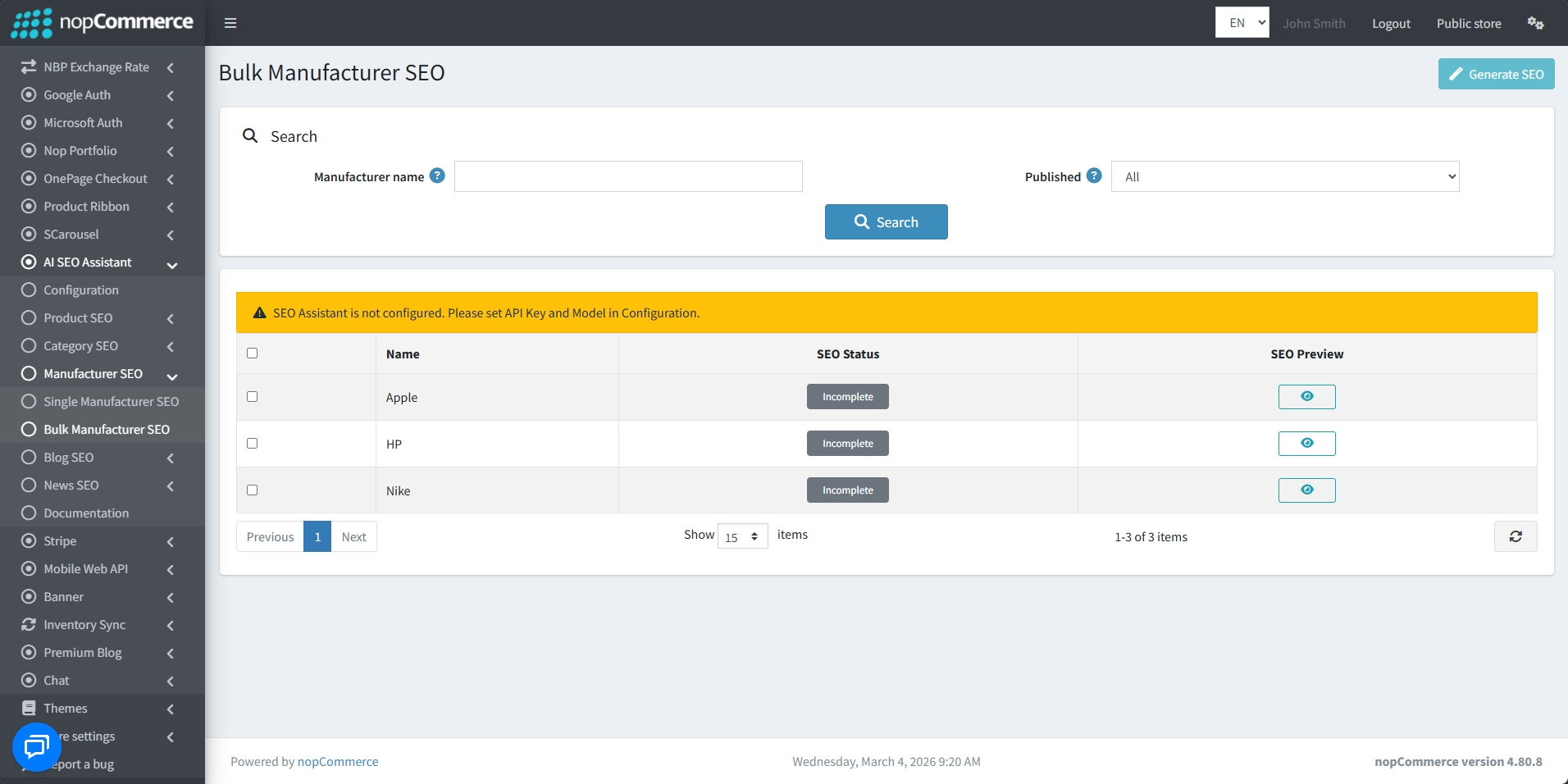
Go to BSS → Plugins → AI SEO Assistant → Manufacturer SEO → Bulk Manufacturer SEO to set the configuration.
-
Mass Processing: Optimize multiple brands simultaneously for faster catalog management.
-
Search Filters: Narrow down the list by Manufacturer name and Published status.
-
Batch Selection: Select multiple manufacturers using checkboxes in the result table.
-
Global Execution: Trigger AI for all selected items via the Generate SEO button at the top right.
-
SEO Preview: Verify generated metadata for each manufacturer using the preview icon.
BLOG SEO
-
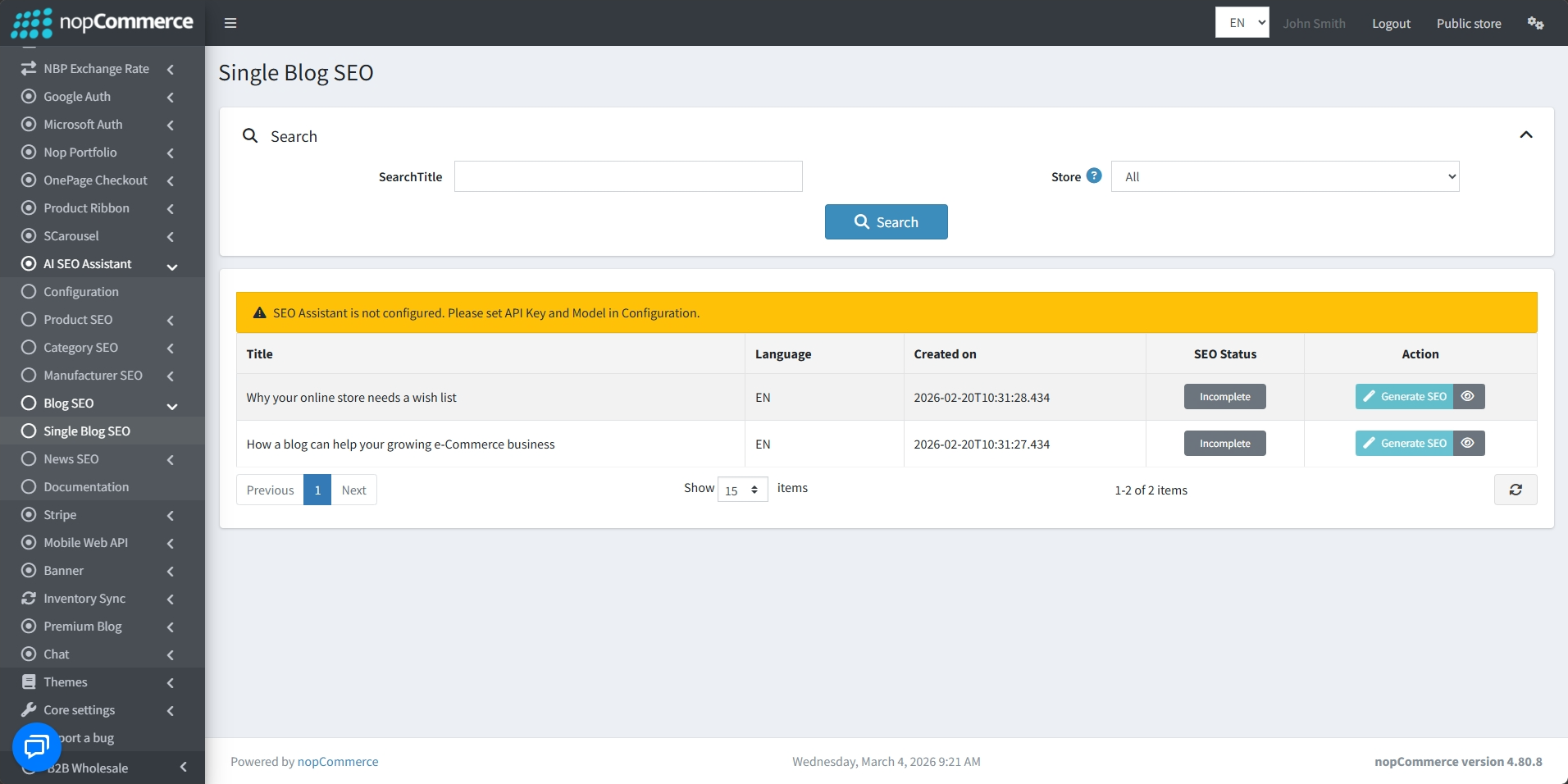
Go to BSS → Plugins → AI SEO Assistant → Blog SEO → Single Blog SEO to set the configuration.
-
Individual Optimization: Generate and manage SEO metadata for specific blog posts one at a time.
-
Search Filters: Easily find posts by filtering the list by SearchTitle and Store.
-
Detailed Overview: View essential post information including Title, Language, and the Created on date.
-
Status Tracking: Monitor the current SEO Status directly from the main list.
-
Quick Actions: Use the Generate SEO button to trigger the AI or the preview icon to review the metadata.
NEWS SEO
-
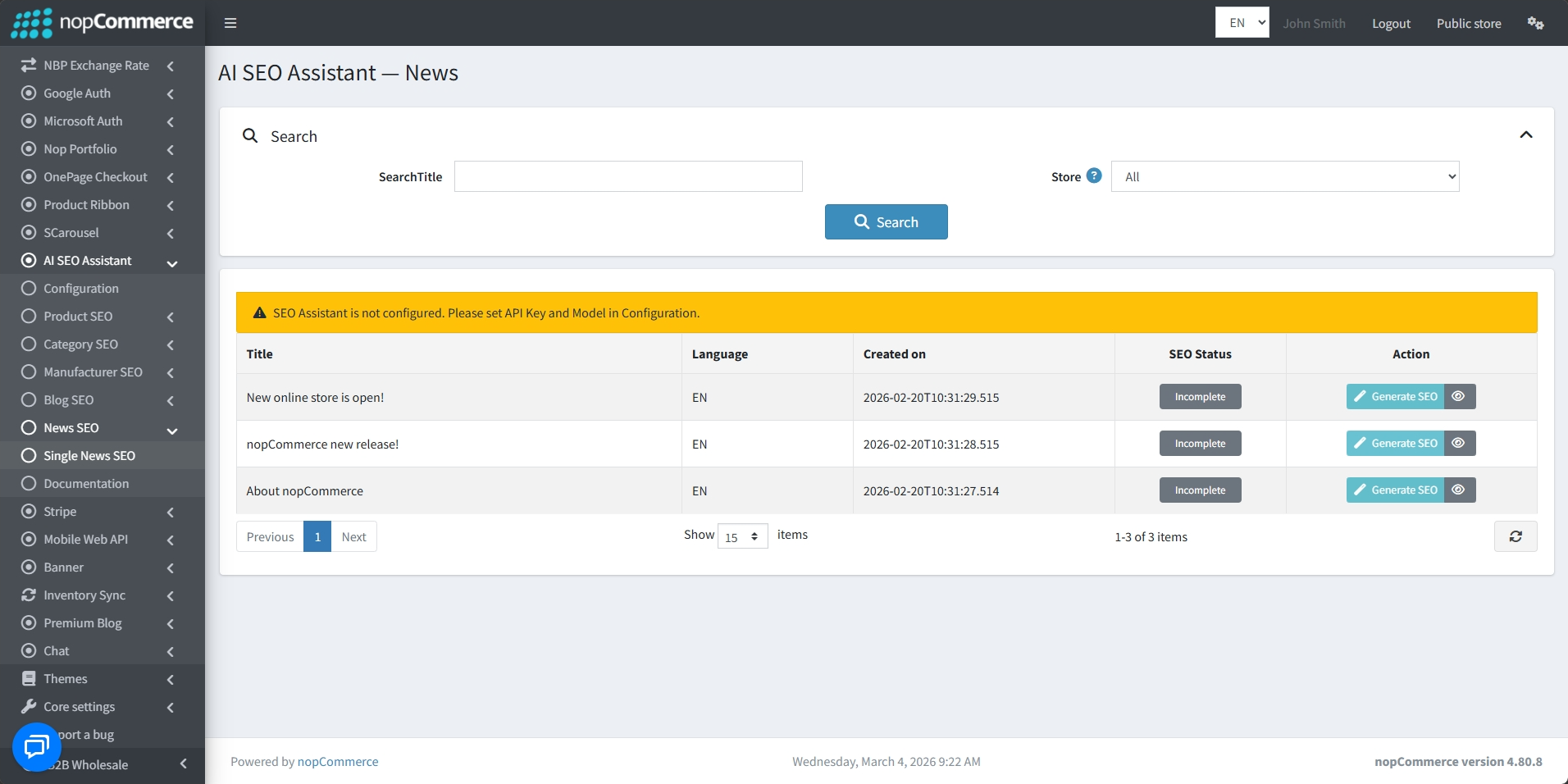
Go to BSS → Plugins → AI SEO Assistant → News SEO → Single News SEO to set the configuration.
-
Targeted Management: Optimize SEO metadata for news items individually for better search visibility.
-
Search Panel: Narrow down news results by entering a SearchTitle and selecting a Store.
-
News List: Displays a clear table of news items with their Title, Language, and Created on timestamp.
-
Visibility: Instantly identify which news items require attention by checking the SEO Status.
-
On-Demand Actions: Trigger AI generation with the Generate SEO button or review the content using the preview icon.
FEATURES
-
Supports multiple AI providers including Google Gemini and OpenAI ChatGPT.
-
Automated metadata generation for Meta Titles, Meta Descriptions, and Meta Keywords.
-
Offers single and bulk SEO tools for products, categories, manufacturers, blogs, and news.
-
Features advanced search filters to quickly locate specific items across the storefront.
-
Includes an SEO Preview modal to review and verify AI-generated content before finalization.
-
Supports multi-language localization for generating metadata across different store locales.
-
Customizable content limits for Meta Title and Meta Description character lengths.
-
Smart overwrite protection to ensure the AI only fills empty SEO fields without replacing existing data.
-
HTML Sanitization to ensure generated content is clean and safe for search engine crawlers.